Add video
KB14286
To add You Tube or Vimeo video to any page locate the text field.
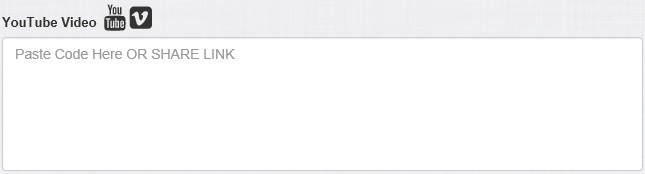
Insert YouTube
There are several ways to share a video on YouTube. To get started, click the Share link under the video you’d like to share, then select one of the following options:
Share this video: This gives you a link that you can copy and paste.
Link to a specific part of the video: Before copying the link, select the Start at: checkbox if you want to share a particular part of the video. For example, if you want to the video to start at 2 minutes and 30 seconds, select the checkbox, then type "2:30” into the box.
Embed: Paste the embed code.
Insert Vimeo
Locate the share option and copy the link given.
More than one video on a page
Using this method only one video can be selected. If you wish more than one video to appear on the page use the text builder tool and drag a video slide to the text area.
For listings!
If the text field YouTube Video is not displayed then for this layout there is not the placeholder for this.
Updated on: 13/09/2015 12:15:08
