How to Setup
KB14851
 Product Booking Calendar - Select to setup and attach bookings / reservations option a product.
Consult the help guide Manage My Product Options which gives examples on how to add a product option and attach to a product.
You can use one setup for all products or individual bookings setups attached to different products.
The example below shows how we get to the main booking calendar setup page. Click the green button Edit BOOKINGS to open the detailed setup for this option.
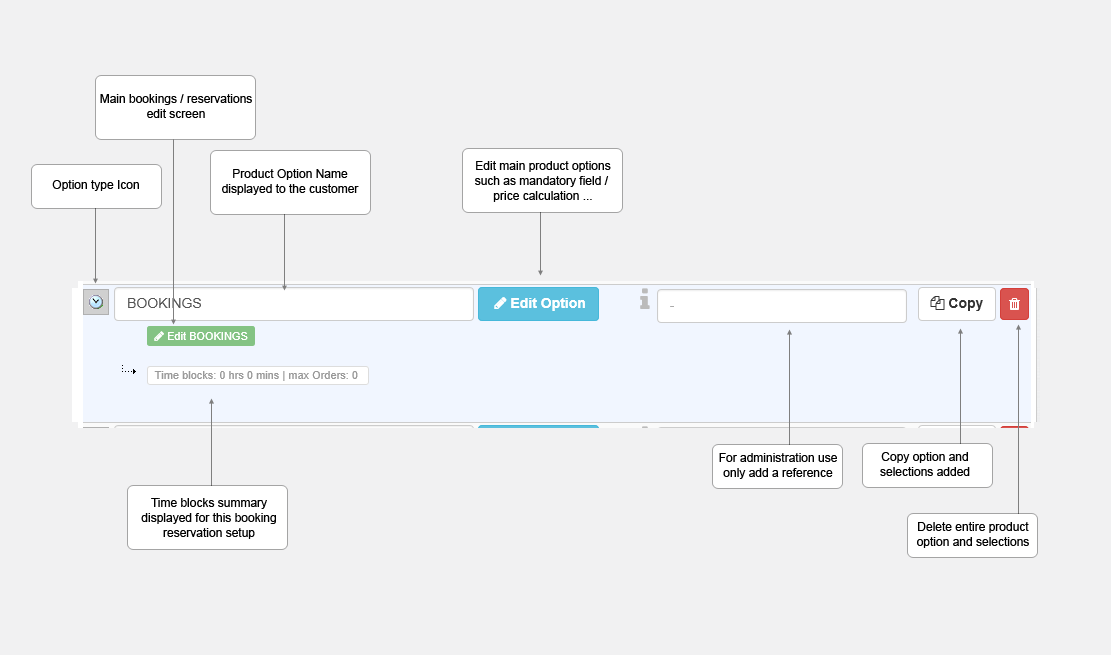
The key to the main bookings / reservations setup page.
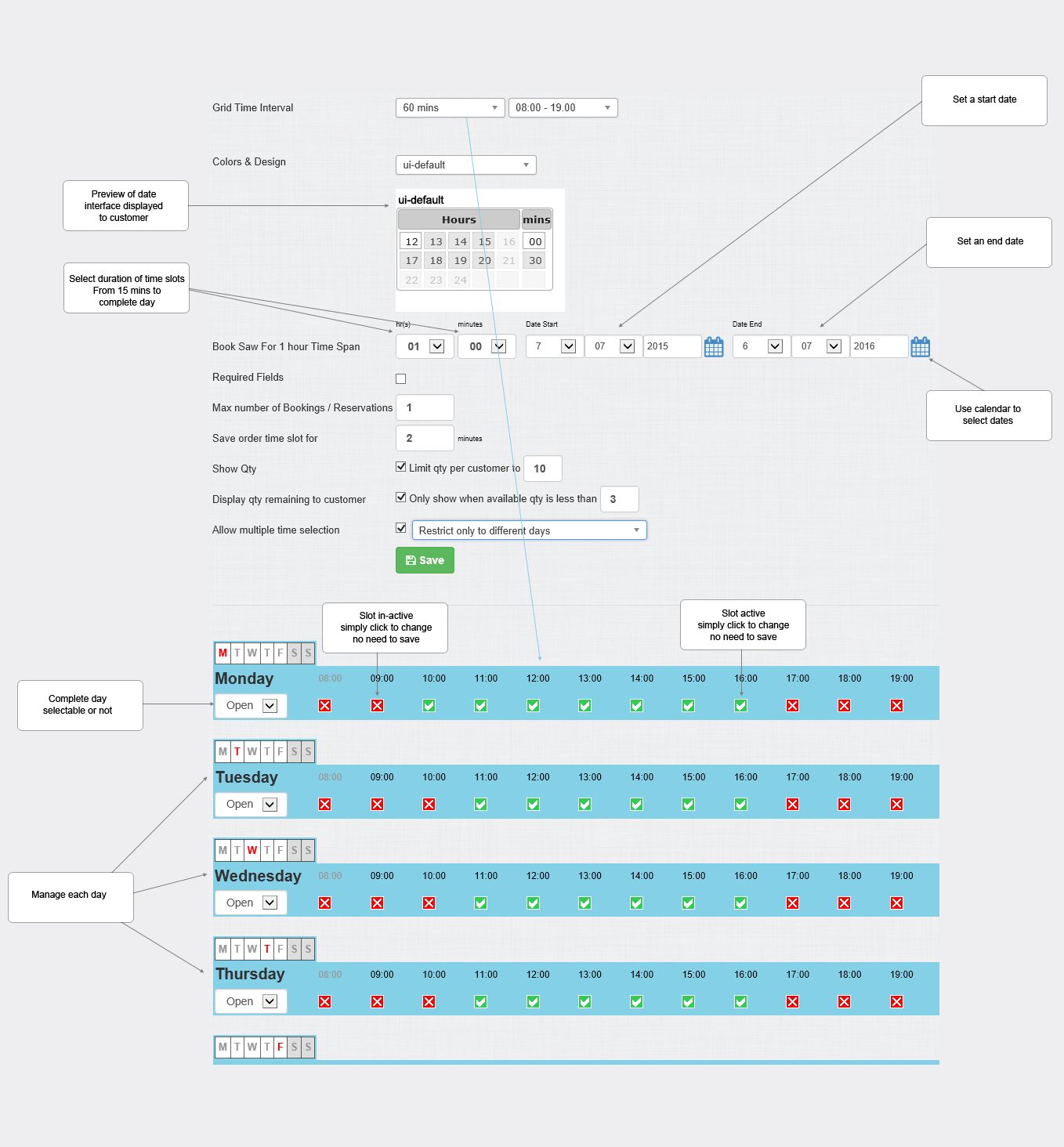
Grid Time Interval
Select the appropriate grid for the time intervals you intend to manage. For example if your time slots will be broken down to 15 minutes select the 15 minute time interval. More slots will then appear. For hourly slots choose the hourly grid.
[15 mins] - Displaying grid in 15 minute intervals
[30 mins] - Displaying grid in 30 minute intervals
[60 mins] - Displaying grid in hourly intervals
Set the day time range.
Colors & Design
Select the date user interface style displayed to web user. There are over 20 jquery styles available.
Book Time Ranges
Set the slot durations and date start and end start.
Required Fields
If selection mandatory.
Max number of Bookings Reservations
Set the maximum amount of total bookings that can be made. Maybe only 1 booking allowed or 1000's.
Save Order time slot for
Set an amount in minutes whereby the order slots a web user has selected will be saved and not available for selection or double booking by other users. Web users can effectively save a block of slots or slot ensuring that no other web user can order the same slot at the same time for a small period of time. Setting this value to 0 mins means there is no such safe guard in place and orders are made on a first come first served basis.
Show Qty
Check to display a quantity box to the web user on the product page and limit the reservation slots per order. If un checked the user cannot edit the quantity and it will always remain at 1.
Display qty remaining to customer
Check to display the amount of free slots available and a further detail to show only when the free slots left reaches a certain threshold level.
Allow multiple time selection
Check to allow multiple time selections per product. And a further detail to limit the multiple selections to different days thereby disabling multiple selections for the same day.
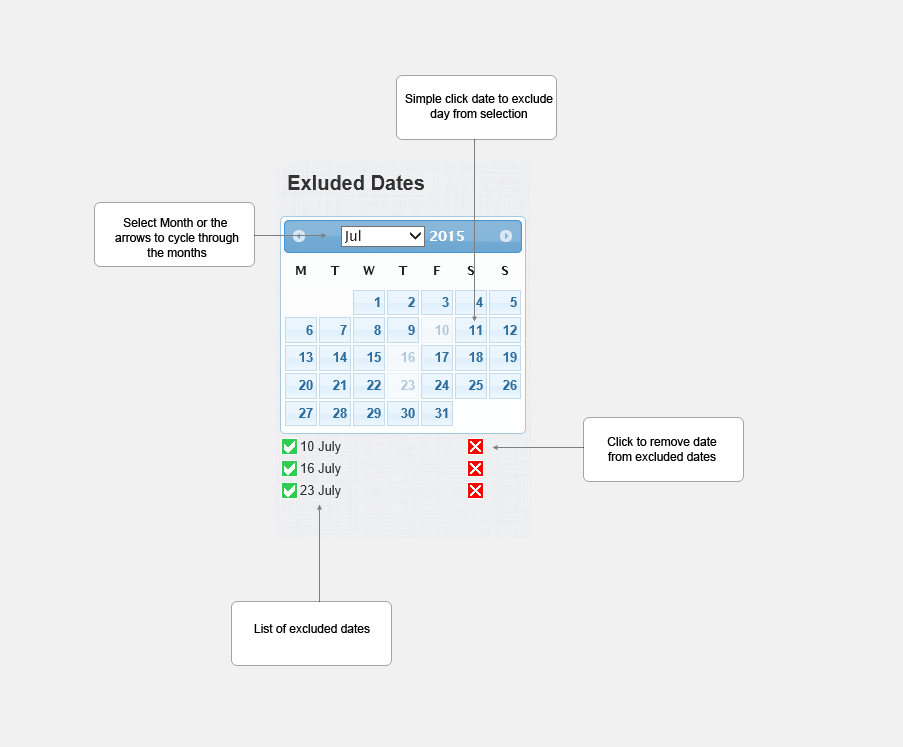
Excluded Dates
You can exclude certain dates from selection for the year.
Updated on: 03/05/2020 16:30:53
