Edit / View Bookings
KB14854
All products that have the product option Bookings / Reservations assigned will display these links when displaying all the listings. Click the blue calendar link to edit bookings. Bookings cannot be created on the edit Bookings page.
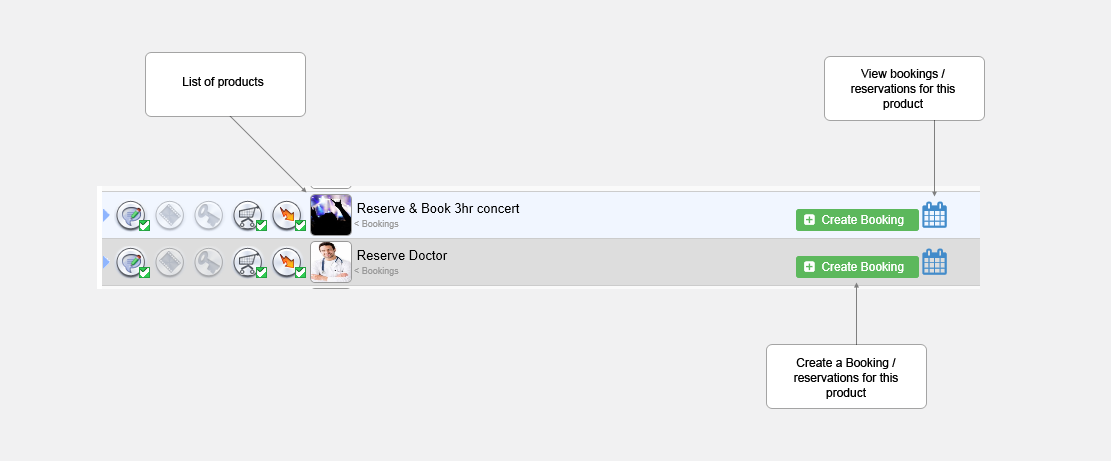
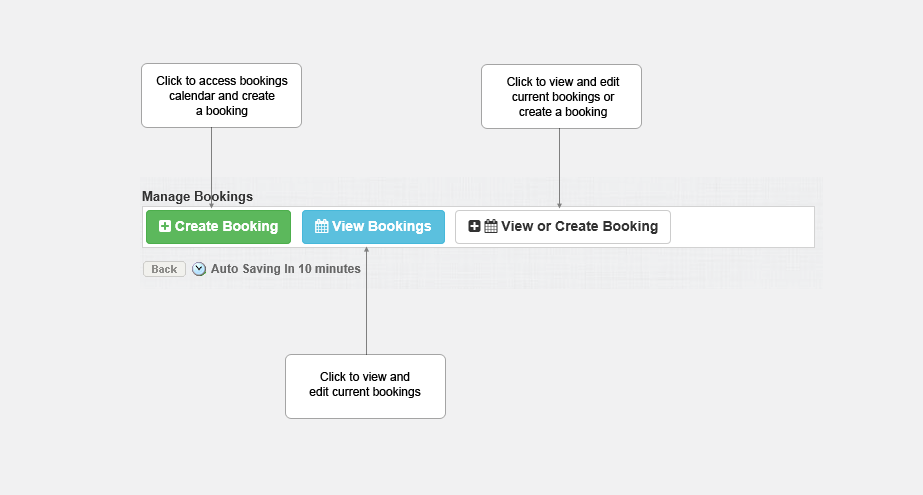
If already on the listing page the bookings links can be accessed as the diagram below.
The edit bookings calendar display when the view bookings link clicked,
The bookings color code adheres to the following status colors
|
New Orders |
New orders not yet viewed. |
|
Balance Not Paid |
Balance Not Paid |
|
The payment is pending. |
Orders that are pending payment |
|
Cancelled |
Cancelled |
|
No status |
No Status |
|
Processing Order |
Orders that are being processed. |
|
Dispatched |
Orders that have been dispatched. |
|
Complete |
Orders that have been completed |
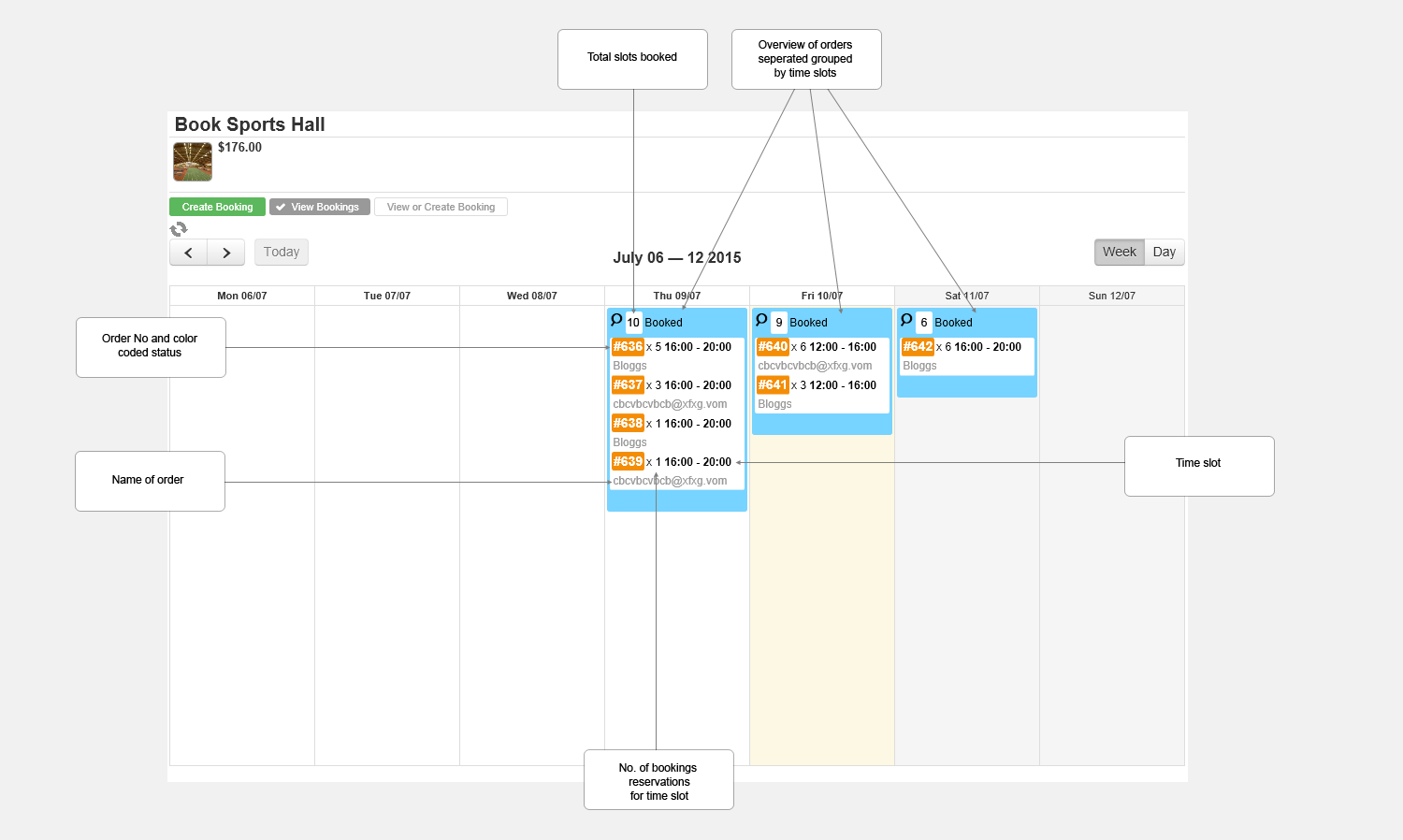
The edit popup display will depend if there are multiple orders or single orders contained in the time slot.

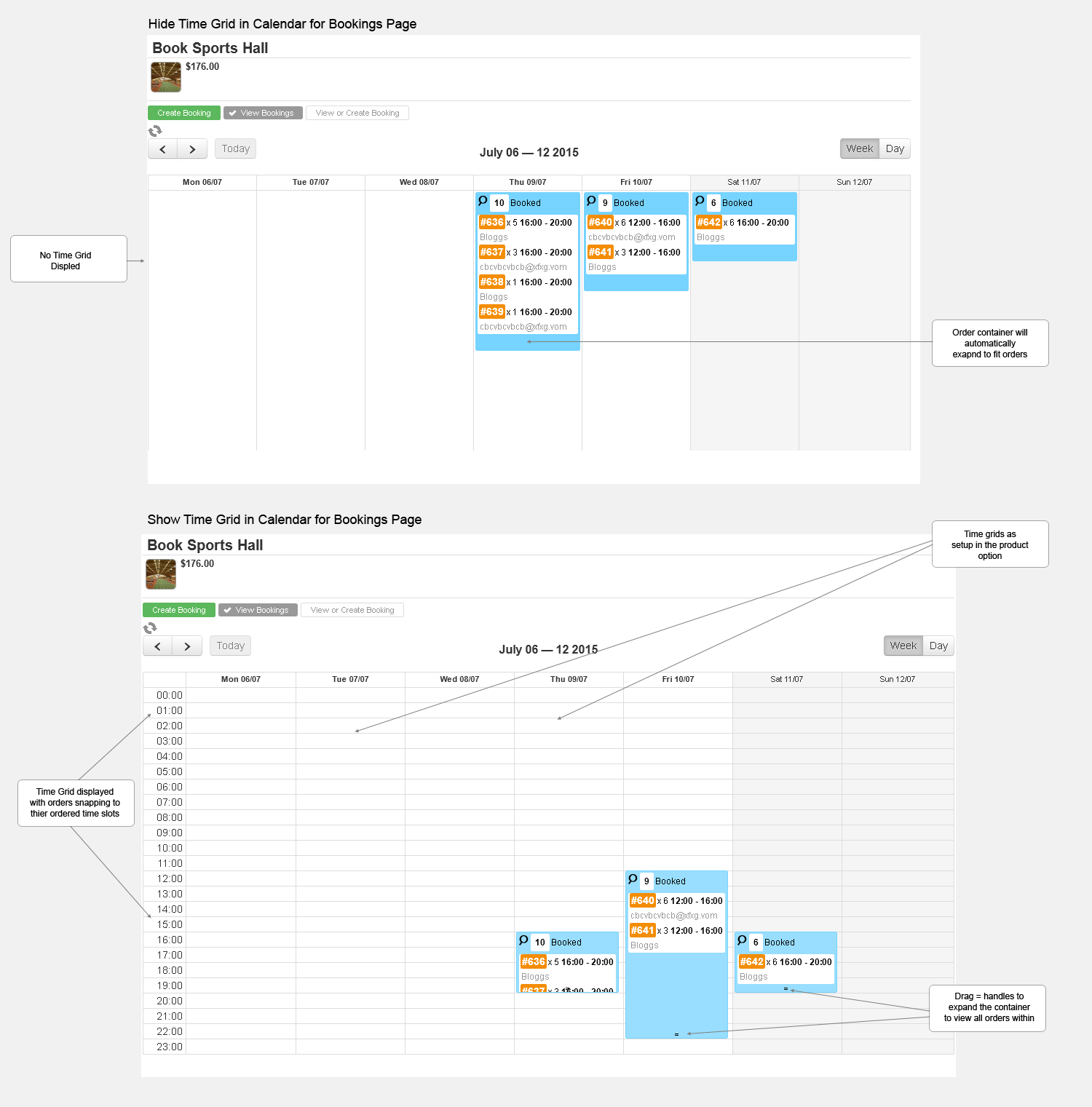
Hide Time Grid in Calendar for Bookings Page
In eShop settings we can choose the way we wish to display the orders for view or edit.Display orders as general list for the day and not positioned and aligned to specific times in day. See the diagram below displaying the options of time grid or hide time grid. Hiding the time grid gives us a direct list of orders for the time slot but the orders are not positioned on a grid and snapped to time as in view with time grid. This is a global setting as in applied to all products.
Updated on: 13/09/2015 11:45:37
How Helpful was this article
1 Votes Cast
