Deleting an Account
KB14878
Deleting an account has a few steps to follow to ensure an account is not deleted by mistake. Only in-active accounts can be deleted so we must set the account to in-active.
Once the account has been deleted it is permanently deleted and cannot be recovered.
Step 1
Click on the main hub home page for the account you wish to delete.
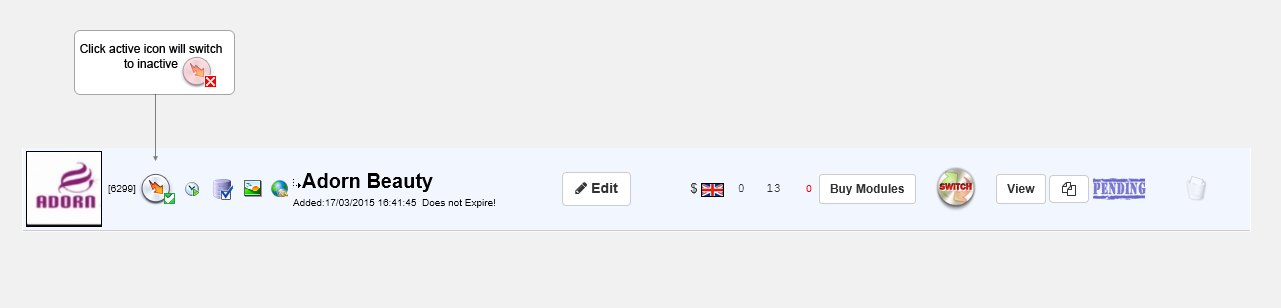
Step 2
We use the active filter and set to view non-active sites which will show only in-active sites. We can then proceed to delete. Clicking the grey recycle bin will open another dialog box for confirmation to permanently delete this account.
The icon (with red cross) can be clicked again to un-delete and return the site back to active.
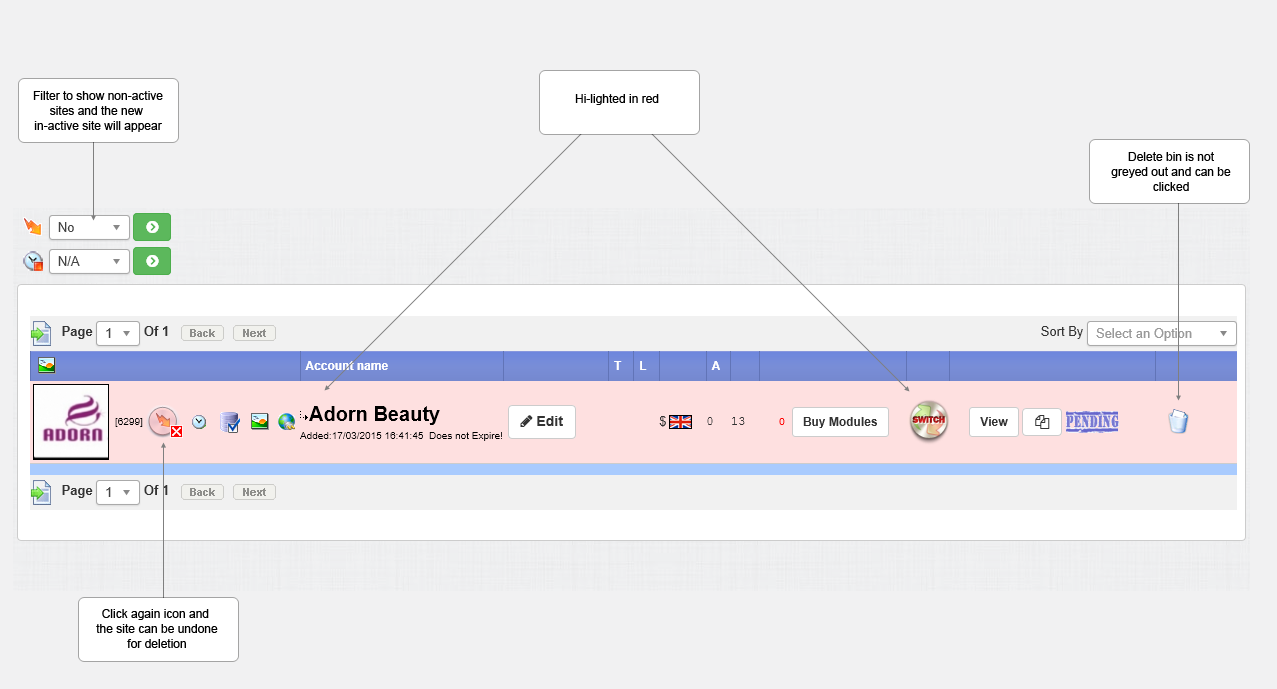
Some sites will appear in this list that are in-active. There are a few reasons why in-active sites may appear in this list.
An account name was selected yet a template was not chosen. This can happen with web users signing up for trials on the website plus in the administration utility when a design has not been chosen. Please reference Adding A Site.
This entry will appear as in the diagram below and can be simply deleted.

Updated on: 13/09/2015 11:42:10
