Manage Product Taxes
KB14521
There are 3 systems of applying tax to products a single global tax choice or multiple product tax or tax based on shipping country / state destination.
| The example diagram below is how we setup the 3 different options in the eShop settings page. This page is primarily concerned with setting up multiple tax bands. Single Product Tax Selection Enter one value which all products will use. This setting is entered in the Settings page. If you wish to use the single product tax selection this page does not apply to you and you can disregard.
or
Multiple Product Tax Selection Have a list of different product tax bands. This page help applies to this condition only. The tax band link can be found in the eShop Settings page. The diagram below is how we select our product tax system on the eShop settings page. 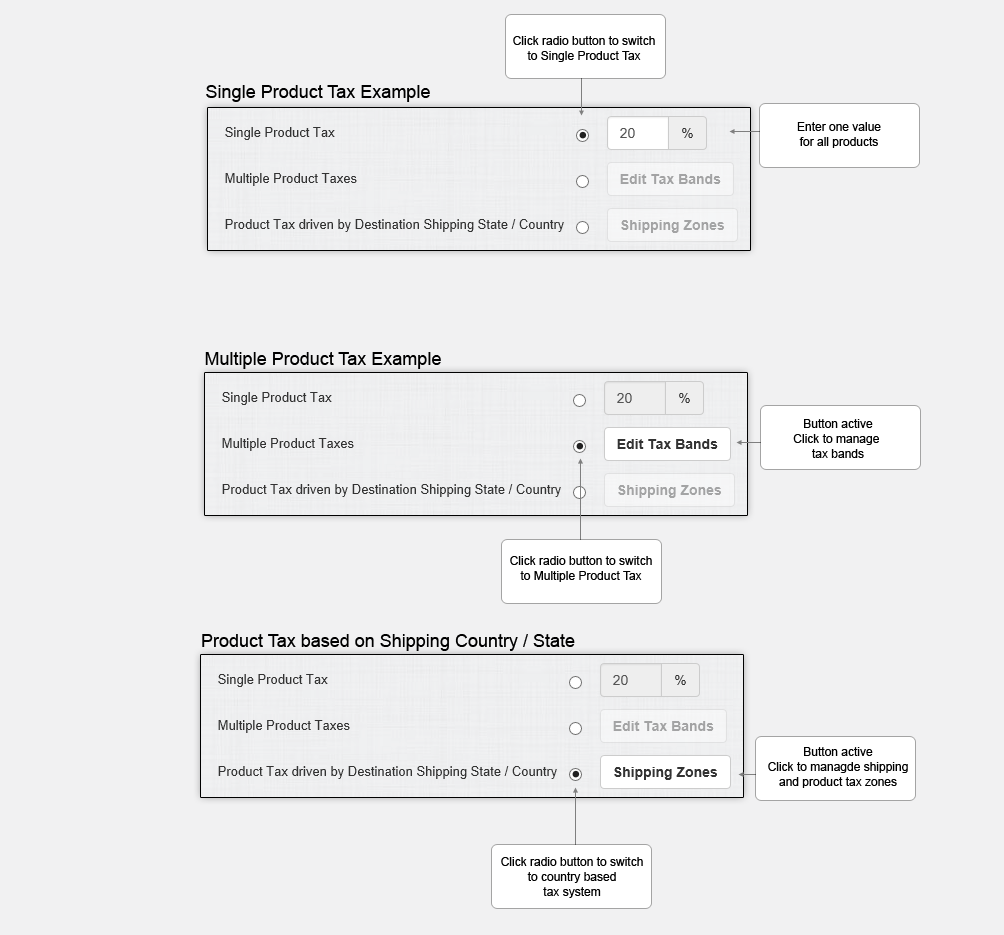
When in product edit a drop down list of these tax bands will be
displayed so you can assign different tax to selected products. Once you
have added the tax band this can easily be updated by editing the text
on this page and value and clicking
This will save all the entries displayed on the page.The different tax bands assigned & tax calculations are all displayed on the customers order. Search by keyword Enter search term in text box in navigation area and click to search. This will search for a tax band. Add Click to add a new tax band. Description Description of tax band visible in the product edit drop down list. Rate Enter a percentage tax value. Default Enter the default tax rate for all products. Delete Click to remove the tax band from the list. Note:The tax band system will only affect prices where the customer is purchasing in the default country. |
Updated on: 03/05/2020 17:17:28
How Helpful was this article
1 Votes Cast
