Manage Order Processing
KB14523
Easy searching and viewing of orders is extremely important to ensure speedy order fulfillment and customer service. The eShop is heavily reliant on color coded steps so we can see or change the status at a glance. Each time the status is changed a note is automatically added to the order with the user ID. There are 5 custom processing steps that can be optionally added to aid any custom order workflow necessary.
Introduction to key
| Tab | Step Title | Step Updatable by Click on Color Region |
|
New Orders |
New orders not yet viewed. | |
|
Balance Not Paid |
Balance Not Paid | |
|
The payment is pending. |
Orders that are pending payment | |
|
Cancelled |
Cancelled | |
|
No status |
No Status | |
|
Processing Order |
Orders that are being processed. | |
|
Dispatched |
Orders that have been dispatched. | |
|
Complete |
Orders that have been completed |
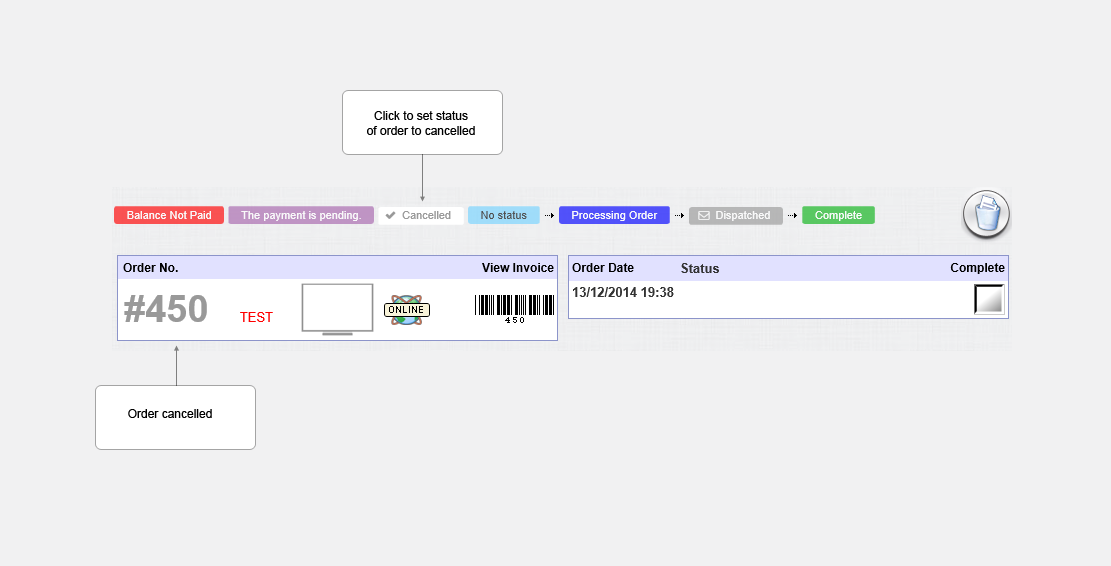
Example of user that clicked Cancelled in order view.
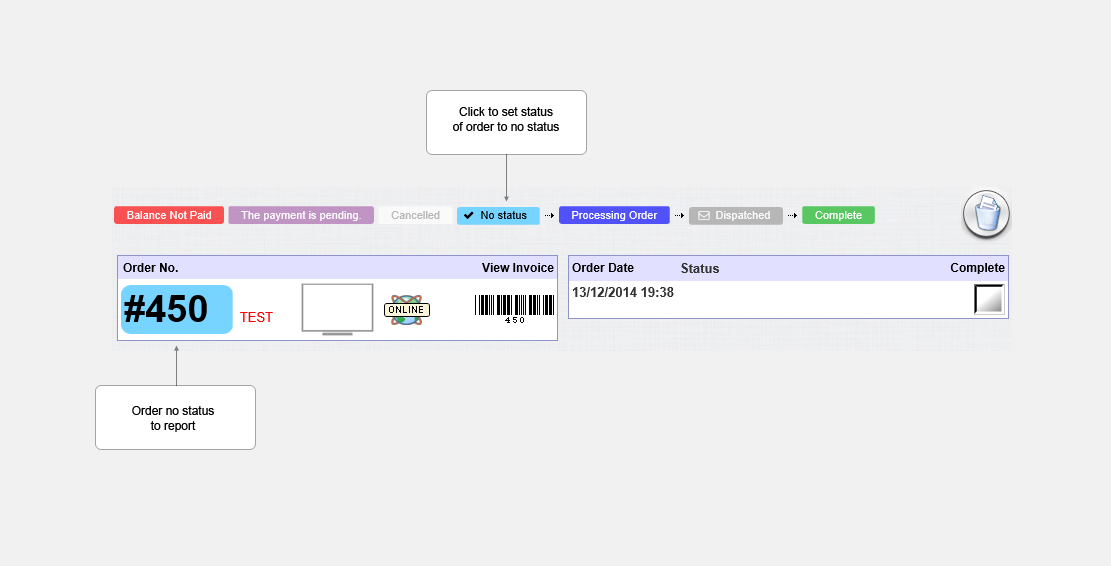
Example of user that clicked No Status in order view.
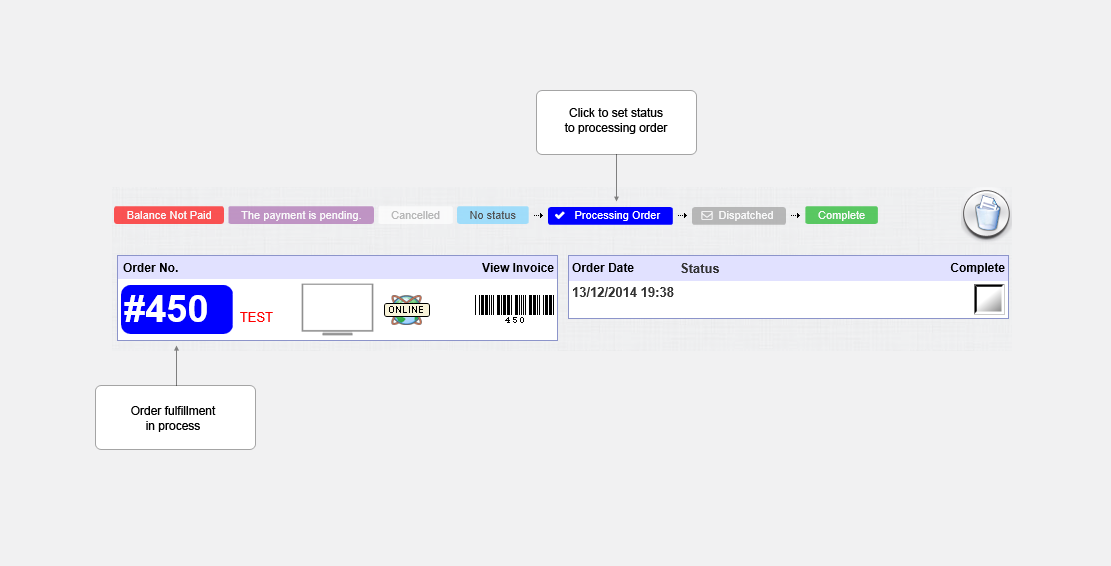
Example of user that clicked Processing Order in order view.
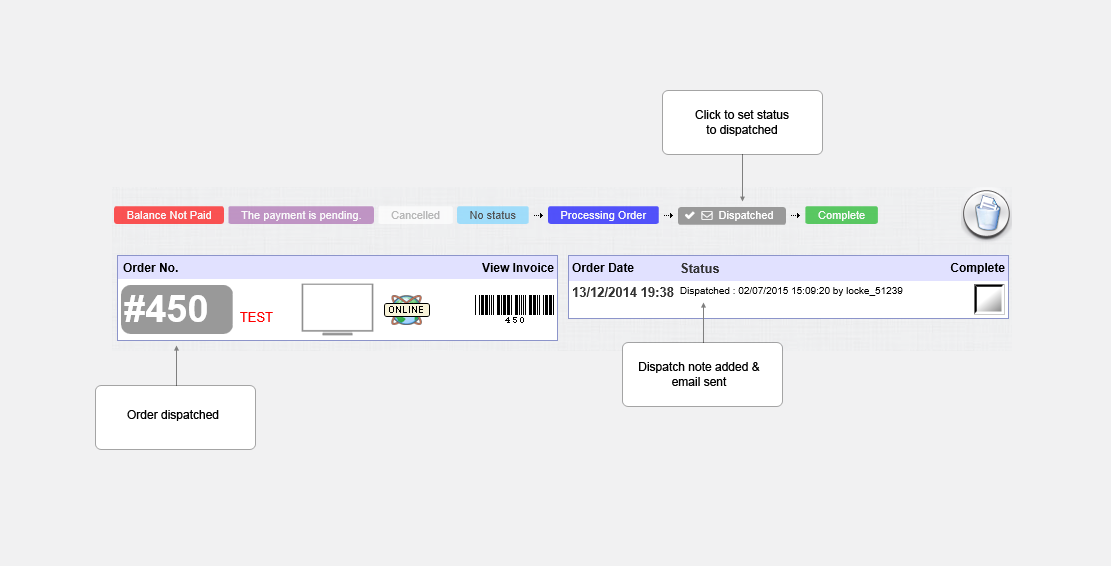
Example of user that clicked Dispatched in order view.
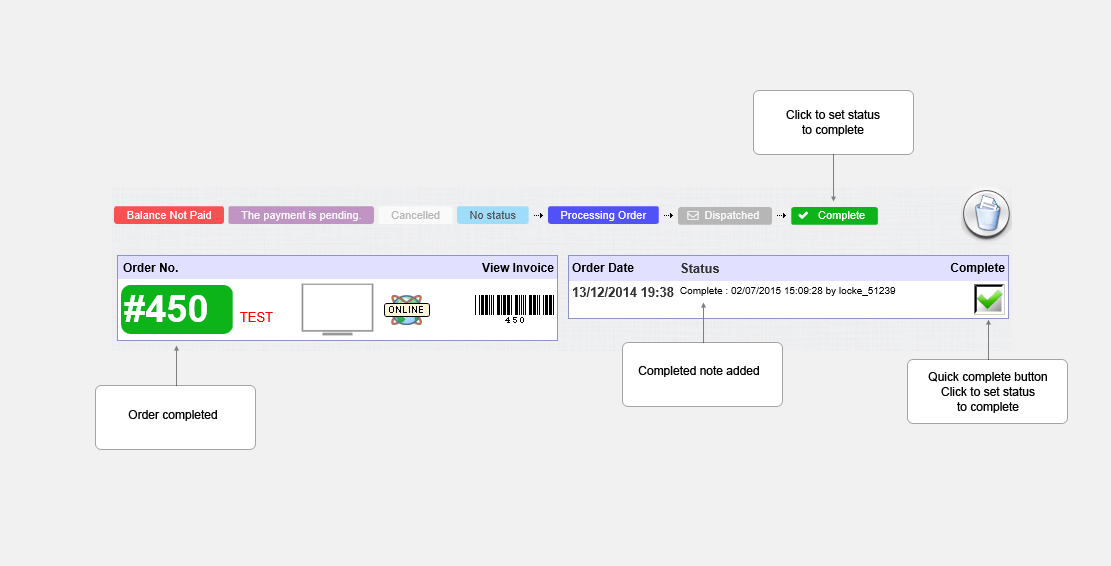
Example of user that clicked Complete in order view.
Example custom order processing steps. These steps are optionally added and setup in the eShop Settings page. There are up to 5 steps you can add to the order fulfillment. These steps will then become available on viewing all orders page and orders can be filtered right down to an individual processing step.

Updated on: 03/05/2020 17:16:39
